



Latest Advisories
From time to time, ConnectWise will provide communications on broader security related topics that may not be linked to a specific ConnectWise product or vulnerability, but are still of importance to our partner community.
October 19, 2026: Cloud Backup (formerly known as SkyKick) Service Interruption
This advisory was originally published on October 16 at 17:47 UTC and last updated on October 19 at 01:15 UTC.
See FAQs below for further information.
Update: Monday, October 19, 2026 at 01:15 UTC
Cloud Backup service interruption update
Our incident response, engineering, and operations teams continue working around the clock with third-party specialists to advance the investigation, complete remediation, and validate services for a safe restoration. We are responsible for restoring service safely and providing clear, timely updates.
Containment measures remain in place. Since implementing mitigations, we have not observed successful threat activity in the environments we monitor.
Cloud Backup, SaaS Security, and Cloud Management remain suspended while remediation and security validation continue. Scheduled backups, archive access, and restores remain unavailable, along with SaaS Security monitoring and alerting and Cloud Management user and license management.
We understand that this interruption affects your ability to support your customers. We do not yet have a confirmed restoration time and will share a timeline as soon as we can do so reliably.
Actions for partners
Please follow the Cloud Backup technical investigation and remediation guide. Review your own Microsoft 365 tenant and each customer tenant you manage, and keep affected applications disabled pending formal restoration instructions.
If you provide services through a reseller, distributor, or marketplace, ensure the administrator responsible for each customer tenant receives and acts on this guidance.
Our next update will be published by October 19 at 13:00 UTC. We will communicate significant developments sooner.
Visit the ConnectWise Trust Center for current status and guidance. Contact Partner Care for service assistance and report suspicious activity to SecurityPartnerSupport@ConnectWise.com.
Update: Sunday, October 18, 2026 at 18:45 UTC
Cloud Backup service interruption update
We are continuing our investigation and remediation following unauthorized access to application identities associated with ConnectWise Cloud Backup, formerly known as SkyKick.
Our investigation and remediation remain ongoing, and our incident response, engineering, and operations teams continue working around the clock with third-party specialists to restore service safely and as quickly as possible.
For partners using the former SkyKick services, Cloud Backup is currently suspended in response to observed indicators of unauthorized activity. Because SaaS Security and Cloud Management are integrated with Cloud Backup, we also suspended those services out of an abundance of caution while our investigation and remediation continue
We recognize the continued disruption to your business and your customers, particularly while backup and restoration services remain unavailable.
Additional IP Indicators
The following IP addresses were shared with us through downstream security monitoring of partner and customer environments. Partners should include these addresses when reviewing available Microsoft 365 authentication and audit logs.
- 144.172.64[.]99 NEW
- 144.172.64[.]60 NEW
- 144.172.64[.]128 PREVIOUSLY LISTED
Detailed guidance for partners and customer administrators
Our previously published guidance remains in effect. The Cloud Backup technical investigation and remediation guide provides detailed instructions for reviewing your MSP’s Microsoft 365 environment and each customer environment you manage. It covers affected application identities, sign-in and audit records, credentials, permissions, role assignments, and potential persistence through other identities or mailbox changes.
If you provide these services through a reseller, distributor, or marketplace arrangement, ensure this guidance reaches the administrator responsible for each customer tenant. If you do not administer those environments directly, coordinate with the customer’s IT administrator or security provider to confirm that the guidance has been received and the review is being addressed.
We will continue publishing updates, including when there is no material change. Our next update will be posted by 1:00 UTC on October 19, 2026.
Please use the ConnectWise Trust Center for current status and guidance. Contact Partner Care for service assistance and report suspicious activity to SecurityPartnerSupport@ConnectWise.com.
Update: Sunday, October 18, 2026 at 16:00 UTC
Cloud Backup service interruption update
We are continuing our investigation and remediation following unauthorized access to application identities associated with ConnectWise Cloud Backup, formerly known as SkyKick.
At this time, we have no new confirmed findings to report. Our previously published guidance remains unchanged and is available here. We are contacting our entire partner base to ensure all partners are aware of the incident, the protective actions we have taken, and where to find current guidance.
For partners using the former SkyKick services, we suspended Cloud Backup in response to observed indicators of unauthorized activity. Because SaaS Security and Cloud Management are integrated with Cloud Backup, we also suspended those services out of an abundance of caution while our investigation and remediation continue. Cloud Backup jobs, archive access, and restores remain unavailable, as do SaaS Security monitoring and alerting and Cloud Management user and license management.
We have implemented containment measures and engaged third-party incident response specialists. Our teams continue monitoring the affected environments, conducting forensic analysis and threat hunting, and carrying out remediation. We are validating the effectiveness of these measures to support a controlled restoration of service.
Existing backup archives remain encrypted and isolated, and we have no indication that those archives have been compromised. These findings concern stored backup archives and do not establish whether individual live Microsoft 365 environments were affected. Partners should continue following the published guidance at ConnectWise Trust Center with their security teams or managed security providers.
Our incident response, engineering, and operations teams are working around the clock to restore service. We recognize the disruption this continues to cause our partners and their customers. Restoring service safely remains our top priority.
We will continue publishing updates, including when there is no material change. Our next update will be posted by 19:00 UTC on October 18, 2026.
Please use the Trust Center for current status and guidance. Contact Partner Care for service assistance and report suspicious activity to SecurityPartnerSupport@ConnectWise.com.
Update: Sunday, October 18, 2026 at 01:00 UTC
Cloud Backup investigation and service update
We are continuing our investigation and remediation following unauthorized access to application identities associated with ConnectWise Cloud Backup, formerly known as SkyKick. This update provides more detail on the actions we have taken, the services currently unavailable, and the suggested system checks partners should complete in their Microsoft 365 environments.
Actions taken by ConnectWise
At 07:00 UTC on October 17, 2026, we disabled the seven ConnectWise application identities listed in the technical guidance below. Disabling the affected connections prevents new authentication through those connections; it does not reverse changes previously made inside a tenant.
We also suspended Cloud Backup service by revoking certificates used for affected application connections. The affected shared Cloud Backup credentials are no longer valid. Previously issued access tokens may remain usable until they expire or are otherwise invalidated. Any unauthorized credentials, permissions, or other access established through separate identities require additional review and remediation.
In addition to mobilizing our internal security teams and Security Operations Center, we engaged a reputable third-party forensics firm. Together, these teams continue monitoring our backup infrastructure and broader environment. We are also reviewing other potentially affected partner facing services. Since implementing our mitigations, we have not observed successful threat activity in the environments we monitor. Investigation and validation remain ongoing.
We are still in the investigation stage of our incident response process, validating critical findings and mitigation paths. We do not have a restoration time to share yet. We will advise partners when we exit this phase and provide reconnection or reauthorization instructions as soon as they are confirmed.
Service availability and backup data
Cloud Backup remains suspended. Scheduled backups are not running, and access to affected backup archives and restoration capabilities remains unavailable. Existing archives remain encrypted, isolated, and preserved. We have no evidence that these archives have been accessed.
As an additional precaution, we have temporarily taken SaaS Security and Cloud Management offline while we complete our review. During this pause, SaaS Security monitoring and alerting and Cloud Management user and license management are unavailable. Please contact Partner Care for assistance with changes you would normally make through these services.
These service interruptions are proactive, protective actions. They do not, by themselves, establish that a partner or customer environment was compromised. We will communicate service-specific restoration status as our review progresses.
Actions partners should take
Partners should review both their own Microsoft 365 tenant and each managed customer tenant, including environments with dormant SkyKick connections. Work with your security team or managed security provider to:
- Verify the status of the listed application connections and keep affected applications disabled until ConnectWise provides restoration instructions.
- Preserve available sign-in and audit records promptly, while taking any urgent containment action.
- Review application and user authentication, application credentials and federation trusts, directory roles, owners, consent grants, and recent policy changes.
- Check for unauthorized mailbox forwarding, inbox or transport rules, and delegated mailbox access.
- Investigate any other identities changed or used during suspicious activity; disabling the original applications does not remove those separate access paths.
The detailed workflow below explains where to look, what findings need investigation, and how to coordinate remediation. A successful sign-in alone does not establish that data was copied. Equally, a clean search cannot rule out activity that was not captured in the available logs.
Our findings about stored archives are separate from potential activity in live Microsoft 365 environments. Cloud Backup does not provide the downstream security visibility needed for us to determine independently whether a particular partner or customer tenant experienced unauthorized activity. The tenant review is therefore an important part of the response.
Communications and next update
We have published incident updates and guidance through the Trust Center and contacted partners through email and direct calls. We have also posted updates on LinkedIn and Reddit. We will continue using these channels to share material findings, service status, and required partner actions.
We appreciate the cybersecurity community’s support and contributions to the investigation. We recognize the urgency of restoring protection for our partners and their customers and are working urgently toward that goal.
We will continue to publish updates to the Trust Center, including if there is no material change. Please use the Trust Center for current status and guidance. Contact Partner Care for service assistance and report suspicious activity to SecurityPartnerSupport@ConnectWise.com.
Technical workflow for MSPs and customer administrators
We recommend that partners complete the following actions, working with their security team and following relevant Microsoft guidance.
Complete this review in your MSP tenant and each customer tenant you manage. Use an authorized account and involve your security team or incident response provider. Log access, application administration, directory-role changes, policy management, and Exchange investigation require different permissions; Global Administrator or Privileged Role Administrator is not a blanket prerequisite for every check.
Application identities disabled on October 17
ConnectWise disabled the following seven application identities at 07:00 UTC. Partners should still verify each local enterprise-application setting. A vendor action and a customer-tenant setting are different controls; this table does not document a separate local change in every customer tenant.
| Application | Application client ID |
|---|---|
| ConnectWise Cloud Backup | 506e08f9-6e9a-4da4-942b-a099a03644ae |
| ConnectWise Cloud Management | 2399d300-6fca-4e6a-a686-399fefe75b83 |
| Cloud Management - MS Teams | 24205314-2b89-4e07-a2a4-579e898a5640 |
| Cloud Management - Exchange Online | b78f6a77-d4e5-46fb-87e5-d1648bd02519 |
| Cloud Management - MS Graph | 0de14c77-b9b0-4137-9360-34878a929827 |
| Cloud Management - Partner Center | 412dcf96-176d-4b3a-a1b0-4981ad66971e |
| Cloud Management - SharePoint Online | b2b55f5b-7758-4719-8d8f-88ae172e6bdb |
Older installations may display SkyKick Cloud Manager names. Match on Application ID rather than display name, and record the local Object ID as well. Do not assume a similarly named application has the same identity or status.
1. Verify local status and preserve evidence
- Sign in to https://entra.microsoft.com/, select the correct directory, and record its tenant ID.
- Open Entra ID → Enterprise applications → All applications. Find each listed Application ID. For an affected application that remains enabled, open Properties, set Enabled for users to sign-in? to No, and save.
- Verify the saved state. Record the application and local Object IDs, administrator, and UTC time. Keep affected connections disabled. Do not delete the application as the first response; preserve its configuration and evidence for investigation.
- Open Monitoring & health → Audit logs and download the available records as JSON. Export the available interactive-user, non-interactive-user, service-principal, and managed-identity sign-in records separately. Use smaller date ranges or approved collection tools for large exports.
- In Microsoft Purview → Audit, collect available Microsoft 365 activity covering the investigation period. Preserve relevant SIEM, storage, and previously configured Graph activity records as well.
Preserve evidence promptly, but do not delay urgent containment while waiting for exports. Entra normally retains audit and sign-in records for seven days on Free and 30 days on P1/P2; access and features vary. Exported/SIEM retention may be longer. Note missing records and actual coverage. A license upgrade does not recover expired history.
2. Review sign-ins across identities
Review from October 13, 2026, through the current time. For broader scoping, extend sign-in searches back to October 1 where records are available, and investigate earlier activity if identified. Record the timezone used.
- In each available sign-in category, filter IP address to 144.172.64.128. Inspect successful and failed events separately and note any other user or application involved.
- In Service principal sign-ins, filter each listed Application ID. Review source addresses, results, timestamps, resources, and available correlation IDs. Expand grouped records to inspect individual events.
- Review unfamiliar addresses against the application owner’s expected activity. Do not restrict the search to the published IP or assume Microsoft/private addresses establish legitimate use.
| Indicator or context | How to interpret it |
|---|---|
| 144.172.64.128 | Published suspicious address. A matching event requires investigation; its result and subsequent activity determine the finding. |
| Python-urllib/3.12; python-requests; curl | Scripting clients may help identify unusual operations, but are also used by legitimate administrators. |
| kiota-dotnet; Azure private IPv6 | Associated with expected vendor activity. Neither alone establishes that an event was authorized. |
Treat attempts, successful authentication, configuration changes, and data access as distinct findings. Common tooling or an address match alone does not prove compromise or exfiltration.
3. Review directory audit events
Open Monitoring & health → Audit logs. Use October 13 through now and inspect the following activities; portal labels can vary slightly.
| Category | Activity examples |
|---|---|
| ApplicationManagement | Update application – Certificates and secrets management; Add service principal credentials; Add application; Add service principal; Add owner to application; Add owner to service principal; Add app role assignment to service principal; Add delegated permission grant; Consent to application |
| RoleManagement | Add member to role; relevant user/group eligible-role assignment changes. |
| Policy | Conditional Access policy additions, changes or deletions; named-location changes. |
| UserManagement | New users, password resets, and authentication-method registration changes. |
Open relevant events and record the initiator, target, outcome, correlation ID and modified properties. Review the user agent where recorded; not every event contains it. Search listed applications as both initiators and targets. Follow any changes they made to other identities. Confirm authorization against owner and change records before classifying an unfamiliar event as malicious.
4. Check credentials and federation trusts
- For locally registered applications, open App registrations → All applications, confirm the Application ID, and inspect Certificates & secrets, including client secrets, certificates and federated credentials.
- Record credential identifiers, thumbprints, validity periods and federation issuer/subject/audience. Compare them with approved configuration and audit events; validity dates alone do not establish when a credential was added.
- Review both the application registration and associated service principal. Vendor registrations may not appear in the customer’s App registrations. An authorized responder can inspect service-principal credential metadata through Microsoft Graph.
- Preserve the evidence, then coordinate removal of unauthorized entries with the owner and incident response provider. Review all management and security integrations that could retain access, not just the seven listed applications.
For service-principal secrets, Microsoft Graph provides the removePassword operation using the local Object ID and credential keyId; application-owned secrets use the application equivalent. Certificates and federation trusts have their own operations. Use an appropriately authorized responder and verify removal. Do not assume ConnectWise has access to make these changes inside your tenant.
5. Check roles applications owners and consent
- Open Roles and administrators and review active application assignments, prioritizing Global Administrator, Privileged Role Administrator, Privileged Authentication Administrator, Application Administrator, Cloud Application Administrator, Exchange Administrator and SharePoint Administrator.
- Match local Object IDs and correlate changes with audit records. Separately inspect privileged user/group changes and applicable eligible assignments; do not assume application identities use the same activation process as people.
- Inspect recently created application registrations and enterprise applications, their Owners, and the enterprise application Permissions grants. Look for unauthorized owners, admin/user consent and elevated API permissions.
- Preserve findings and have the authorized responder remove confirmed unauthorized assignments, owners or grants. For a malicious newly created application, disable it, retain evidence, and decide on deletion after investigation.
Review each access mechanism separately. If an MSP management identity has permissions across customers, assess which other tenants need investigation. A replacement legitimate credential does not remove an attacker-added credential, role, or consent grant.
6. Check policy changes
- Open Protection → Conditional Access → Policies and Named locations. Review recent changes to policy state, assignments, exclusions and trusted locations against approved records.
- Escalate unexplained changes and have the policy administrator correct confirmed unauthorized settings. Assess operational effects before altering legitimate controls.
This is a review for additional persistence or weakened controls. User policies do not automatically protect application-only authentication. Conditional Access for workload identities covers supported single-tenant service principals registered in the tenant, not third-party SaaS/multitenant apps. It is not a substitute for disabling affected connections.
7. Check Exchange and resource activity
- In Purview Audit, search the investigation period for Exchange activities such as New-InboxRule, Set-InboxRule, Set-Mailbox, Add-MailboxPermission, Add-RecipientPermission, New-TransportRule and Set-TransportRule. Use corresponding friendly names where the search interface requires them.
- Investigate unexpected external forwarding, rules that hide or delete messages, new Full Access or Send As rights, and transport-rule changes. Validate against authorized changes.
- Use Exchange admin center → Mail flow → Rules for transport rules and Recipients → Mailboxes for forwarding/delegation settings. Inspect inbox rules separately with authorized Exchange Online PowerShell where needed, including Get-InboxRule -Mailbox <mailbox> -IncludeHidden for hidden rules.
- Where available and licensed, correlate MailItemsAccessed, other Microsoft 365 audit records, security alerts and previously collected Graph activity with suspicious events. Include relevant SharePoint, OneDrive and Teams activity.
Preserve evidence and remediate confirmed unauthorized changes through your response provider. Application authentication alone does not establish data copying. Normal backup reads and limited logging may make attribution difficult. Enabling logging now does not recover events that were never recorded; document that uncertainty.
8. Review remaining connections and record the outcome
- Search Enterprise applications for other ConnectWise and SkyKick identities. Record their IDs, owners, permissions and purpose. Assess their legitimacy and risk with your security provider and ConnectWise; do not infer compromise from a name alone.
- Keep affected or suspicious connections disabled while the review continues. Preserve evidence and assess business impact before removing unrelated legitimate integrations.
- For each tenant, record log coverage, findings, containment times, credential/role/consent/policy/mailbox remediation, unresolved questions, and your response owner.
- Check the last successful backup recovery point and assess the protection gap while services are unavailable. Follow formal restoration guidance before reconnecting; after authorized restoration, verify workload connections and successful backup jobs.
Escalate unauthorized credentials, privileged assignments, suspicious successful activity or evidence of data access to your incident response provider immediately. Send relevant findings to SecurityPartnerSupport@ConnectWise.com, including tenant and application identifiers, UTC timestamps, event/correlation IDs and a description. Do not include passwords, private keys, tokens PII or other secrets.
A completed checklist records the work performed and evidence available. It does not guarantee that a tenant was unaffected. Please use the Trust Center for current status and guidance. Contact Partner Care for service assistance and report suspicious activity to SecurityPartnerSupport@ConnectWise.com.
Microsoft technical references
- Application sign-in disablement
- Entra log download and retention
- Compromised application investigation
- Audit activity reference
- Service principal secret removal
- Workload Conditional Access scope
- Inbox rule investigation
Update: Saturday, October 17, 2026 at 17:00 UTC
Cloud Backup investigation and service update
We have taken protective action following unauthorized access to application identities associated with ConnectWise Cloud Backup, formerly known as SkyKick. Our investigation remains ongoing. Since implementing the mitigations described below, we have not observed successful threat activity in the environments we monitor.
Actions taken
Out of an abundance of caution, we suspended Cloud Backup service by revoking certificates used for affected application connections across all users. This removed ConnectWise’s access through those connections. The shared credentials previously used for Cloud Backup are no longer valid and cannot be used.
In addition to mobilizing our internal security teams and Security Operations Center (SOC), we have engaged a reputable third-party incident response firm to support our investigation and containment efforts. Together, these teams are actively monitoring our backup infrastructure and broader environment, with the investigation extending across all partner-facing services. At this time, we have no indication that any other ConnectWise product, service, or offering is impacted.
Backup data and customer environments
Cloud Backup archives remain encrypted and isolated. We have no evidence that these encrypted backup archives have been accessed. Existing archives are isolated and preserved, although access and restoration remain unavailable during the service interruption.
These findings relate to our Cloud Backup environment. By design, the configuration of Cloud Backup does not provide us visibility or access to downstream partner and customer environments. As a result, we cannot determine through our investigation alone whether a particular customer’s Microsoft 365 environment experienced unauthorized activity. Partners should continue reviewing their environments with their security teams or managed security providers.
Investigation and restoration
We are in the second phase of our investigation and response, validating critical findings and mitigation paths. This work will determine the steps required to restore service. We will communicate when we exit this phase and share restoration timing and any required partner actions as soon as possible.
We appreciate the cybersecurity community’s support and contributions to the investigation. We recognize the urgency of restoring protection for our partners and their customers.
We will publish another update later today, October 17, 2026, through the ConnectWise Trust Center, including if there is no material change. Please use the Trust Center for current status and guidance. Contact Partner Care for service assistance and report suspicious activity to SecurityPartnerSupport@ConnectWise.com.
We understand the disruption this incident is causing our partners and their customers, particularly while backup and restoration services remain unavailable. Our teams are working urgently to restore service.
Update: Saturday, October 17, 2026 at 05:01 UTC
We recently identified unauthorized access to application identities within the ConnectWise Cloud Backup environment.
As a protective measure for our Cloud Backup partners and their clients, we are shutting off Cloud Backup application access. This will interrupt backup services for customers until further notice.
We have no indicators to date that Cloud Backup partner backup data has been compromised. The existing cloud backup archive is not impacted by this service interruption and will be accessible once services are restored. Our investigation and remediation efforts remain ongoing.
How to Check for Indicators of Compromise (IOCs)
If you would like to review your environment for potential indicators of compromise associated with this activity, follow the steps below:
- In the Microsoft Entra Admin Center, navigate to Monitoring → Sign-in logs, select the Service principal sign-ins tab, and filter by Application ID 506e08f9-6e9a-4da4-942b-a099a03644ae.
- This is where the application's authentication activity is recorded.
- The default User sign-ins tab will not display the required information.
- In the IP address column, review authentication activity originating from IP addresses outside expected Microsoft/Azure ranges. The application's normal egress has been identified as Azure private IPv6.
- Identified suspicious IP address: 144.172.64.128
The presence of these indicators warrants further investigation but does not, by itself, confirm that your environment has been compromised.
Please check back with our Trust Center for updates and published guidance on monitoring your environment. Coordinate with your security team or managed security provider to review unusual application sign-ins and permission changes. Report suspicious activity to SecurityPartnerSupport@ConnectWise.com.
We recognize the impact on our partners' operations and will provide further updates, including service status through the Trust Center and Partner Care.
Thank you,
ConnectWise
Update: Friday, October 16, 2026 at 17:47 UTC
ConnectWise is investigating recent attempts of unauthorized access associated with the ConnectWise Cloud Backup environment. Upon detecting this threat, we promptly initiated our incident response procedures. Containment measures are in place, and our investigation continues. At this time, there is no indication that partner backup data has been accessed.
Our engineering teams are continuing to explore the nature and scope of the issue. Our investigation is ongoing, and we will provide additional information as appropriate. We appreciate your patience while we work through this process.
Indicators of Compromise (IOCs)
The following indicators have been associated with the reported suspicious authentication activity.
Source IP Address
144.172.64.128
Observed User Agents
Python-urllib/3.12python-requests/2.31
These indicators are provided in transparency to assist with security monitoring and investigation. Their presence alone does not establish unauthorized activity or confirm compromise.
FAQs
1. Who was impacted?
The service interruption affects partners and customers using Cloud Backup, formerly known as SkyKick. Because SaaS Security and Cloud Management are integrated with Cloud Backup, those services have also been suspended out of an abundance of caution while our investigation and remediation continue. A service suspension does not, by itself, mean that a partner or customer environment was compromised.
2. Which ConnectWise products and services are affected?
Cloud Backup is currently suspended in response to observed indicators of unauthorized activity. Because SaaS Security and Cloud Management are integrated with Cloud Backup, we have also suspended those services out of an abundance of caution while investigation and remediation continue.
3. What impact does this have on other ConnectWise products?
The current service interruption applies to Cloud Backup, SaaS Security and Cloud Management. We will communicate any changes to the scope of affected services as the investigation progresses.
4. When did you find out there was a problem?
Upon discovery on October 15, 2026, ConnectWise initiated internal and external incident investigation and response actions.
5. Who was the threat actor?
We cannot discuss threat actor attribution at this time. Our focus is on investigation, remediation, and supporting affected partners and their customers.
6. Was there unauthorized access to my data?
We have no indication to date that partner backup data has been compromised. We continue investigating potential unauthorized access and will communicate material findings affecting partners or their customers, if any.
7. Is my environment compromised?
We have not identified confirmed downstream customer compromise. However, the investigation remains ongoing, and the absence of confirmed compromise is not assurance that no unauthorized activity occurred.
8. Are they on my network?
We have not identified any instance of the attacker accessing your internal network or endpoints. Access through a cloud application identity does not, by itself, establish internal network access. Potential downstream activity remains under investigation.
9. Was there a product vulnerability?
The investigation identified compromised application identities. Whether a product vulnerability contributed has not been established, and the original credential-exposure mechanism remains under investigation.
10. Why did you disable my service?
Cloud Backup was suspended in response to observed indicators of unauthorized activity while we investigate and remediate the incident. Because SaaS Security and Cloud Management are integrated with Cloud Backup, we also suspended those services out of an abundance of caution. These measures are intended to reduce risk while we work to restore service safely.
11. What steps have you taken to contain the threat?
We have rotated credentials or disabled the compromised application identities identified to date and are reviewing and reducing application permissions. We continue authentication monitoring and forensic analysis, and we are disabling affected Cloud Backup application access as an additional protective measure.
12. Did I lose my backup?
Backup and restoration services are currently unavailable while Cloud Backup remains suspended. Our investigation and remediation are ongoing, and we will provide additional information about service restoration as it is confirmed.
13. Can I restore data during the interruption?
Backup and restoration services remain unavailable while Cloud Backup is suspended. We recognize the impact this has on partners and their customers and are working with third-party specialists to restore service safely and as quickly as possible.
14. What should I look for in my environment?
Follow the steps in the technical advisory to review your Microsoft 365 environment and each customer environment you manage. The guidance covers affected application identities, authentication and audit activity, credentials, permissions, role assignments, mailbox changes and other potential persistence.
Partners should also include the following IP addresses when reviewing available Microsoft 365 authentication and audit logs:
144.172.64[.]99
144.172.64[.]60
144.172.64[.]128
An observed connection to one of these IP addresses should be investigated in context and does not, by itself, establish compromise.
15. What steps should I take to contain the threat?
Follow the technical advisory for detailed steps to review your MSP Microsoft 365 environment and each customer environment you manage.
If you provide these services through a reseller, distributor or marketplace arrangement, ensure the guidance reaches the administrator responsible for each customer tenant. If you do not administer those environments directly, coordinate with the customer’s IT administrator or security provider to confirm the guidance has been received and the review is being addressed. Report suspicious activity to SecurityPartnerSupport@ConnectWise.com.
16. What other steps should I take next?
Monitor the ConnectWise Trust Center and direct communications. Review relevant activity with your security provider, assess continuity needs while backups are interrupted, and report suspicious findings.
17. When will service be restored?
Cloud Backup, SaaS Security and Cloud Management remain suspended while investigation and remediation continue. We do not have a restoration time to share at this time. Our incident response, engineering and operations teams are working with third-party specialists to restore service safely and as quickly as possible.
We will continue publishing updates throughout each day, including when there is no material change.
18. Will I need to reconnect or reauthorize customer tenants?
Restoration requirements are still being determined. If reauthorization or other partner action is required, we will provide instructions.
19. How do I turn my service back on?
Wait for ConnectWise to confirm that restoration can proceed. Follow the reconnection or reauthorization instructions provided through direct communications and the Trust Center. Once restored, verify that protected workloads are connected and scheduled backups have resumed.
20. How do I report suspicious activity?
Email SecurityPartnerSupport@ConnectWise.com. Include affected tenant and application identifiers, timestamps and time zones, and a description of the activity. Do not include passwords or private keys.
21. Where can I find updates and support?
Visit the ConnectWise Trust Center for published updates and guidance. Contact Partner Care for service-related assistance.
September 3, 2026: ScreenConnect® Remote Access: Guest File Transfer Advisory | Updated September 9, 2026
This advisory was originally published on September 3, 2026, to provide interim mitigation guidance before the security update became generally available.
The remediation is now available in ScreenConnect 26.6.5 or higher. For the latest technical information, affected versions, remediation guidance, and CVE details, please refer to:
- Security Bulletin: 2026-09-08 ScreenConnect Bulletin
- CVE-2026-84869
ConnectWise has identified an issue affecting file transfer behavior in ScreenConnect® Remote Access Support and Access sessions. The issue affects both Cloud and On-Premise deployments.
Affected Product
What's in scope for this advisory.
|
Product |
CW Remote Access™ (Support and Access sessions) |
|
Deployment types |
Cloud and On-Premise |
|
Status |
Security update released. |
ScreenConnect 26.6.5 addresses this issue. Cloud deployments have been updated automatically. On-premises partners should upgrade to 26.6.5 or higher as soon as possible. Interim mitigation remains available for partners unable to upgrade immediately.
Remediation
Partners should upgrade to ScreenConnect 26.6.5 or higher as the primary remediation.
Mitigation Steps
If you are unable to upgrade immediately because of maintenance windows or change-control requirements, the mitigation described below may be used temporarily until the update can be applied. This is not a substitute for installing the security update.
- Log into the Administration page of your ScreenConnect instance or installation.
- Navigate to the Administration > Security > Roles section.
- Edit a role that you have assigned to your users.
- Review each session group that has permissions assigned to it; these session groups will be in a bold font.
- For each session group, in the Scoped Permissions window, check if the TransferFiles permission (or TransferFIlesInSession for legacy versions) is selected. If it is, deselect it.
- Save your changes to the role.
- Repeat for each role that’s defined in your instance or installation.
Support
How to get help with this issue.
Open a case with our support team at ConnectWise Home, or email help@connectwise.com.
Report a Security Incident
How to report a new or active security issue.
Visit the ConnectWise Trust Center to report a non-active security incident or a security vulnerability.
March 17, 2026: ScreenConnect™ Security Hardening for Authentication Trust
Summary
Security researchers have observed attempts to abuse disclosed ASP.NET machine key material. ASP.NET machine keys are cryptographic components used by the framework to sign and validate protected application data.
ScreenConnect generates unique, instance specific cryptographic material; however, if this material becomes accessible, a threat actor may be able to forge or modify protected values that the application treats as trusted. In ScreenConnect, this may enable unauthorized actions within the instance, including elevated access and access to active sessions.
ConnectWise has implemented updates to further protect and rotate instance cryptographic material used for session authentication, reducing opportunities for abuse should disclosure occur.
Product(s) impacted
- Product: ScreenConnect
- Affected Versions: ScreenConnect prior to 26.1 are impacted
- Fixed Version(s): 26.1
Risk overview
ASP.NET machine keys are used to sign and encrypt specific framework-protected values. When the cryptographic material remains confidential, the framework can validate data authenticity and integrity.
If the machine key material for a ScreenConnect instance is disclosed, a threat actor may be able to generate or modify protected values in ways that may be accepted by the instance as valid. This can result in unauthorized access and unauthorized actions within ScreenConnect.
Our response
To strengthen the security posture of ScreenConnect, ConnectWise has implemented changes that:
- Improve protection of instance cryptographic material used for session authentication.
- Enable on-demand regeneration of instance cryptographic material through an administrative action.
- Strengthen application integrity.
These updates reduce the likelihood and potential duration of abuse if cryptographic material is disclosed. ConnectWise is committed to the ongoing modernization and security hardening of the ScreenConnect platform as part of our broader secure-by-design posture.
Recommended actions
- Update ScreenConnect to 26.1 as soon as possible.
- Continue maintaining ScreenConnect on a supported, up‑to‑date version by applying future updates promptly.
- Review instance-level and server-level access controls to restrict access to sensitive application configuration and secrets.
- Monitor ScreenConnect logs for unusual authentication activity and unexpected administrative actions.
- Ensure backups, exported configuration archives, and historical snapshots are not accessible to untrusted users or systems.
- Keep all ScreenConnect extensions up to date, ensuring only trusted and supported extensions are installed.
December 18, 2025: ConnectWise Best Practice Advisory – ScreenConnect™ Certificate Signing Extension Handling
ConnectWise is committed to the ongoing security and hardening of our products. As part of this commitment, we conduct regular architecture reviews and participate in coordinated vulnerability disclosure programs.
As a result of these efforts, recent enhancements strengthen the extension framework by improving how extension configuration values are processed and handled. These changes ensure that configuration data is managed entirely on the server side and is no longer rendered or exposed through client-facing components.
This framework-level hardening includes specific improvements to the Certificate Signing extension. With the updated extension, configuration values associated with the signing workflow are handled exclusively within the server environment, preventing encrypted configuration data from being returned to unauthenticated users.
In scenarios where extensions are misconfigured or customized outside recommended practices, the likelihood of unintended behavior may increase. Updating the Certificate Signing extension to version 1.0.12 or higher introduces server-side controls designed to mitigate this class of issue, and partners are encouraged to review extension configurations as part of routine maintenance.
This advisory is provided to offer partners visibility into these architectural improvements and to share best-practice guidance related to extension configuration handling in ScreenConnect.
What Partners Should Know
- Recent updates to the ScreenConnect extension framework improve how extension configuration data is handled and protected.
- ScreenConnect cloud environments are automatically updated as part of standard operations and already include these enhancements; no action is required for cloud-hosted partners.
- On-premises partners should ensure the Certificate Signing Extension is updated to version 1.0.12 or higher to address this issue and benefit from the latest security improvements.
- All partners are encouraged to keep ScreenConnect extensions up to date as part of routine maintenance.
Best Practice Guidance
As part of our ongoing security advocacy, partners are encouraged to:
- Keep all ScreenConnect extensions up to date to ensure the latest security hardening and quality improvements are applied.
- Review and manage extension usage, installing only those extensions required for operational needs.
- Limit access to administrative and configuration interfaces to authorized personnel and regularly review access activity.
- Follow good credential hygiene practices for integrations and service accounts, including avoiding long-lived credentials, rotating secrets on a regular schedule, and managing credentials through a documented and monitored process.
Support and Resources
Partners are encouraged to ensure the ScreenConnect Certificate Signing Extension is updated to version 1.0.12 or higher to address the behavior described in this advisory.
- For additional information related to extension configuration and management, please reference the following documentation:
Certificate Signing - ConnectWise
If you have questions or need assistance related to ScreenConnect or any security matter:
- Visit ConnectWise Home to open a case, connectwise.com/chat, or email help@connectwise.com for additional support.
- To stay informed about the latest security updates and information, we strongly recommend that all partners regularly visit and/or subscribe to our Security Trust Page and RSS alerts.
September 25, 2025 Salesloft+Drift/Salesforce: ConnectWise Response
August 25, Salesloft announced a breach impacting their customers with the Salesforce-Drift integration, allowing unauthorized access to customers’ Salesforce data. Drift is an AI chat agent. ConnectWise was impacted along with hundreds of other organizations. No ConnectWise products or services were impacted. A limited number of business contact fields were accessed; no sensitive data was involved.
System(s) impacted
Salesforce (ConnectWise enterprise tool)
What we know
ConnectWise was impacted along with hundreds other organizations.
Our response
As soon as we learned of the event, our security team launched an investigation, and we followed the prescribed recommendations. Our investigation confirmed:
- this event was isolated to Salesforce;
- no ConnectWise products or services were impacted;
- in ConnectWise's Salesforce data, no proprietary data, sensitive information, or PII was compromised. Only a small number of business names and publicly available contact details were accessed.
We take this situation seriously and are monitoring the situation. If further analysis determines sensitive data was accessed or misused, we will notify any affected individuals or organizations consistent with our contractual obligations and applicable regulatory requirements.
If you have concerns or need additional support, please contact ConnectWise support.
Remediation
None
June 9, 2025 Code Signing Certificate Rotation for ScreenConnect, ConnectWise Automate and RMM
The security of our partners and trust in our products are paramount to ConnectWise. We are updating the digital signing certificates used in ScreenConnect, ConnectWise Automate, and ConnectWise RMM due to concerns raised by a third-party researcher about how ScreenConnect handled certain configuration data in earlier versions. In addition to issuing new certificates, we are releasing an update to improve how this configuration data is managed in ScreenConnect.
This issue does not involve a compromise of our systems or certificates (including the event described in our May 28, 2025 Security Advisory). However, based on recent requirements from our technology partners, we are required to rotate our certificates by Friday, June 13 at 8:00 p.m. ET (June 14, 12:00 a.m. UTC). ConnectWise received this extended deadline Monday evening.
We had already planned enhancements to certificate management and product hardening, but these efforts are now being implemented on an accelerated timeline. We understand this may create challenges and are committed to supporting you through the transition.
On-Premises Solutions
Customers using on-premises versions of ScreenConnect or Automate must update to the latest build and validate that all agents are updated before June 13 at 8:00 p.m. ET (June 14, 12:00 a.m. UTC) to avoid disruptions or degraded experience.
- Automate on-premises build is available now.
- ScreenConnect on-premises build is available now.
Please visit our ConnectWise University page for download links, version details, and step-by-step instructions.
Cloud Solutions
We are in the process of automatically updating certificates and agents across all cloud instances of Automate and RMM. These updates are being deployed progressively. We recommend validating that your agents are running the latest version prior to the June 13 deadline to ensure continued service.
For ScreenConnect cloud instances, we are finalizing the updated build, which will also be deployed automatically once ready.
Resources and Support
For product-specific instructions, agent version information, and a FAQ, please visit the ConnectWise University page. This page will be continuously updated with the latest guidance and answers to common questions.
If you need additional assistance, please contact our support team via live support chat.
We appreciate your continued partnership and are committed to addressing this matter with urgency and care to ensure minimal impact to your business.
May 28, 2025 Security Event Advisory
ConnectWise recently learned of suspicious activity within our environment that we believe was tied to a sophisticated nation state actor, which affected a very small number of ScreenConnect customers. We have launched an investigation with one of the leading forensic experts, Mandiant. We have contacted all affected customers and are coordinating with law enforcement. As part of our work with Mandiant, we implemented enhanced monitoring and hardening measures across our environment. We have not observed any further suspicious activity in any customer instances. The security of our services is paramount to us, and we are closely monitoring the situation and will share additional information as we are able.
Frequently Asked Questions
In addition to our statement provided on May 28, 2025, please find below frequently asked questions for reference.
What happened
- ConnectWise recently learned of suspicious activity within our environment that we believe was tied to a sophisticated nation state actor, which affected a very small number of ScreenConnect customers. We immediately launched an investigation with assistance from the leading forensics experts, Mandiant.
- As part of our work with Mandiant, we implemented enhanced monitoring and hardening measures across our environment.
- We issued a patch and have not observed any further suspicious activity in ScreenConnect cloud instances since the patch was implemented.
- We have contacted all affected customers.
Which of your products were affected?
- At this time, our investigation indicates that activity was isolated to ScreenConnect. We have not observed any additional suspicious activity in ScreenConnect cloud instances since the patch was released on April 24. Our investigation is ongoing, and we will share additional information as we are able.
Is ScreenConnect safe to use?
- We have not seen any suspicious ScreenConnect activity since releasing the patch on April 24.
What about on-premise ScreenConnect customers?
- Please see the April 24th Security Patch Advisory below for instructions to update on-premise ScreenConnect servers to a patched release.
Am I impacted?
- We have contacted all affected customers.
How many customers were impacted?
- It is a very small number.
- We have completed initial outreach to all affected customers.
Was the compromise due to a vulnerability in ScreenConnect?
- We are currently focused on ensuring that the impact to partners and partner-facing systems is identified and remediated. The patch that we issued and the additional monitoring we put in place addresses the previously mentioned activity. Our investigation is ongoing, and we will share additional information as we are able.
Was ransomware involved?
- No, it has been determined that this was not a ransomware attack. The suspicious activity has been tied to a nation state threat actor that is known for intelligence collection.
Is this related to last year’s vulnerability?
- No, this is not related. The suspicious activity has been tied to a nation state threat actor that is known for intelligence collection.
April 24, 2025 ScreenConnect Security Patch Advisory
What we know
In December 2024, Microsoft Threat Intelligence detected misuse of publicly available ASP.NET machine keys to inject malicious code and deploy a post-exploitation framework. Microsoft found that publicly accessible keys were being utilized to perform malicious actions on servers generally. It is important to note that to obtain these machine keys, privileged system level access must be obtained. Reference: https://www.microsoft.com/en-us/security/blog/2025/02/06/code-injection-attacks-using-publicly-disclosed-asp-net-machine-keys/ .
We are taking proactive steps to mitigate any potential impact on partners regarding this identified ASP.NET weakness. In line with our commitment to Secure by Design, ConnectWise is releasing a patch to reduce the risk of ViewState abuse and further harden the attack surface.
What are ViewState code injection attacks?
According to Microsoft, ASP.NET Web Forms utilize ViewState to maintain page and control state, storing data in a hidden field encoded with Base64. To protect against tampering, ASP.NET employs machine keys like ValidationKey for creating a message authentication code (MAC) and DecryptionKey for encryption. If these keys are compromised, attackers could craft a malicious ViewState using the stolen keys, sending it via a POST request to the website. When processed, the ASP.NET Runtime decrypts and validates the ViewState with the correct keys, enabling the execution of malicious code in the server's memory and granting threat actors remote code execution capabilities on the ASP.NET framework. Reference: https://www.microsoft.com/en-us/security/blog/2025/02/06/code-injection-attacks-using-publicly-disclosed-asp-net-machine-keys/
Our response
Our cross-functional teams conducted comprehensive assessments of all our Cloud instances to identify any potential areas of risk. Additionally, we have implemented enhanced monitoring measures to actively track any changes or suspicious activities related to this issue. Meanwhile, our engineering team effectively identified and implemented a product level patch in the ConnectWise ScreenConnect Cloud. Partners who are on premises must patch their ScreenConnect instance immediately.
Remediation
Cloud partners
No action is required. ScreenConnect servers hosted in “screenconnect.com” cloud (standalone and Automate/RMM integrated) or “hostedrmm.com” for Automate partners have been updated to remediate the issue.
On-premises partners
On-premise: Active maintenance
If you are on active maintenance, we strongly recommend upgrading to the most current release of 25.2.4. Using the most current release of ScreenConnect includes security updates, bug fixes, and enhancements not found in older releases.
To upgrade to version 25.2.4, please note there is a specific upgrade path that must be followed:
22.8 → 23.3 → 25.2.4
For instructions on how to upgrade your on-premise installation click here .
On-premise: Off maintenance
We recommend renewing maintenance and upgrading to the newest release, 25.2.4. Please see the above instructions for how to upgrade to the newest version of ScreenConnect and to check your maintenance status.
If you elect not to renew maintenance, we have released free security patches for select older versions dating back to release 23.9. Versions of ScreenConnect can be downloaded from the ConnectWise website: https://screenconnect.com/download/archive . The updated releases will have a publish date of April 22nd, 2025, or later. Partners on a version older than 23.9 will be able to upgrade to 23.9 at no additional charge.
For help with upgrading visit ConnectWise Chat to open a case or email help@connectwise.com for additional support.
For questions regarding maintenance, please contact screenconnectsales@connectwise.com or call +1-813-514-8400.
If you have additional questions, please contact security@connectwise.com. To report a security or privacy incident, please visit the ConnectWise Trust Center.
January 30, 2025 Phishing Alert: Staying Vigilant Against Phishing Attempts
As part of the broader trend of increased phishing activity during tax season, we have seen attempts to impersonate legitimate ScreenConnect login alerts. These emails are designed to look authentic, encouraging recipients to click on malicious links. While phishing remains a common cybersecurity challenge, attackers continuously refine their tactics, making awareness and proactive security measures more important than ever.
To help protect against these attempts, we recommend verifying URLs before clicking on any links and following defense-in-depth security best practices.
A key detail to remember: Legitimate ScreenConnect login alerts never include a "click here" link. If you receive an email with such a link, it is not from ConnectWise.
Below is an example of a phishing email designed to appear as an official login alert.
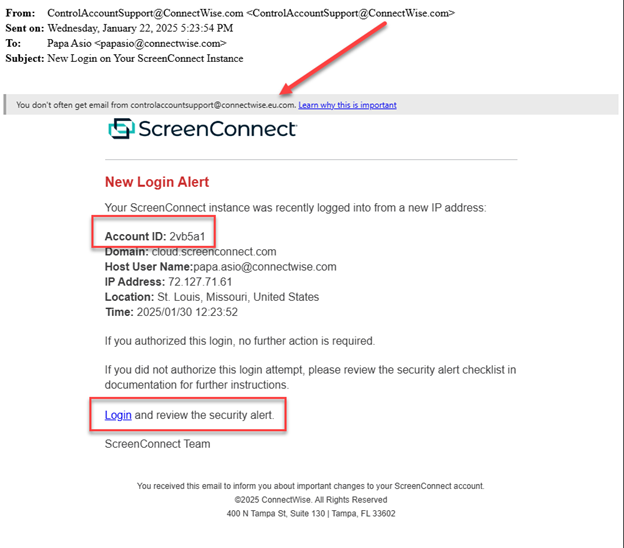
Please note, ScreenConnect does send legitimate new login alerts via email as shown in this screenshot. ConnectWise alerts do not have a “click here” link for any login notifications. If you see a link in your notification, it is not legitimate. It is also important to note that the Account ID will never match your actual account ID. Either of these two indicators is a clear giveaway to the phishing campaign.
What should you look for?
We encourage our partners to stay vigilant in looking for clues to avoid mistakenly clicking on nefarious content. Before clicking, make sure content reflects:
- Verify the Sender: Always check the sender's email address. Ensure the domain matches a trusted source. Be wary of slight variations in spelling or unusual top-level domains (e.g., screenconect.net or screenconnect.com.eu).
- Inspect Links: Hover your mouse over any links without clicking to see the actual URL. Verify that it points to a legitimate ConnectWise domain (e.g., cloud.screenconnect.com). Be extremely cautious of shortened URLs or links that redirect to unfamiliar sites. This is especially important during tax season when many phishing emails use tax-related keywords in the URL.
- No Links in Login Alerts: As mentioned above, legitimate ScreenConnect login alerts will never contain clickable links. Any email claiming to be a login alert with a link should be treated as suspicious.
- Defense in Depth: Beyond email security, ensure you have strong passwords, multi-factor authentication (MFA) enabled wherever possible, and up-to-date antivirus software. These measures are crucial year-round, but particularly important during periods of increased phishing activity like holidays and tax season.
What to Do If You Suspect a Phishing Attempt:
- Do Not Click: Do not click on any links or open any attachments in suspicious emails.
- Report It: Copy the email as an attachment and send it to Security@ConnectWise.com. Additionally, report it internally leveraging existing processes (Report Phish, Forward to IT, etc.) to ensure it is blocked appropriately.
If you are concerned that you may have been compromised, please follow the steps in this security alert checklist. We also recommend reviewing the ScreenConnect security guide and best practices for further securing your instance, as well as verifying that links, your account ID, and your domain are accurate.
If you have questions, suspect you received a phishing attempt, or need to report a security or privacy incident, please visit our ConnectWise Trust Center. You can report both a non-active security incident, report a security vulnerability, or create a case with ConnectWise Service and Support.
March 21, 2024 Unauthenticated Access to Legacy AWS Server Located in the EU Region
We want to notify you of a security incident that we are currently investigating. Our team was notified by a security researcher of a vulnerability to a single AWS server in our EU environment. This server hosts a legacy service that we had targeted for deprecation. While our investigation is ongoing, we wanted to inform you of the potential risk associated with this incident.
Incident Details
Date and time: The vulnerability was initially reported on March 17. On March 18, we mitigated the vulnerability and subsequently, on March 20, we discovered there was unauthorized access to the AWS server.
Nature of access: The access appears to be unauthenticated, indicating a potential security breach.
Server location: The compromised single server is a legacy system in the AWS EU region.
Data at risk: Preliminary investigations suggest that the information viewable to an unauthorized party would be limited to the email addresses for a subset of individuals who had authenticated into the EU environment.
Actions Taken
Immediate response: Upon detection, our security team initiated immediate response protocols to contain the incident and mitigate any further potential risks.
Investigation: Our InfoSec team, working alongside an external forensics firm, have launched a thorough investigation into the incident to ascertain the extent of the unauthorized access and any potential malicious activity.
Potential Impact
We are treating this incident seriously and are thoroughly investigating with our InfoSec team as well as an independent external forensics firm. We believe that there was a finite amount of information available to be viewed by an unauthorized party (e.g., email address) and that an unauthorized party would not be able to expand access beyond the single AWS server.
The service in question is consumed by our legacy Continuum environments, however this issue is constrained to our EU implementation only. This service is not consumed by any of the other product lines such as PSA or Automate.
Throughout the day on March 21, the teams are running additional scans and tests and partners may experience some intermittent slowness or authentication issues during those times. We will do our best to limit the partner impact.
Next Steps
We will continue to share updates on the progress of our investigation and communicate directly to the small number of partners in the EU who may have been impacted.
Support
If you need any assistance or have additional questions, please go online to ConnectWise Home and open a case with our support team or email help@connectwise.com.
We appreciate your continued partnership.
March 4, 2024 Important Update: Hardening Guidelines for ConnectWise ScreenConnect CVE-2024-1708 (Path Traversal)
ConnectWise published a security bulletin and multiple communications regarding vulnerabilities found in ConnectWise ScreenConnect™ (CVE-2024-1709, CVE-2024-1708). As a reminder and as part of the remediation process for on-prem partners—whether you have patched your server or still need to—it is critical to assess your systems for signs of impact while upgrading and before bringing any systems back online.
If you possess enhanced Windows event logs or endpoint detection and response (EDR) solutions, thorough investigation should be conducted to identify any suspicious activity, including evidence of commands run from webshells or other indicators of compromise.
In the event file anomalies or other indicators of compromise are identified, it is highly recommended to seek assistance from external response companies specializing in incident response and digital forensics. These companies possess the expertise necessary to effectively investigate and remediate security concerns.
Cloud partners
Cloud partners are remediated against both vulnerabilities reported on February 19. No further action is required from any cloud partner (“screenconnect.com” cloud and “hostedrmm.com”).
On-premise partners
Whether you have patched your server or still need to, it is critical to assess your systems for signs of impact while upgrading and before bringing any systems back online.
Review file system, enhanced Windows event logs, or EDR solutions for suspicious activity, such as webshell commands or other compromise indicators.
Seek assistance from specialized incident response and forensics firms if potentially impacted files are identified.
To assist in the remediation and hardening process, we encourage partners to review and follow the ConnectWise ScreenConnect Remediation and Hardening Guide by Mandiant for additional protection.
Within the Mandiant-provided hardening guide, you will find additional mitigation and steps to check for signs of compromise, such as:
- Auditing rogue users, malicious extensions, and additional checks for indicators of compromise
- Enabling baseline audit and privacy logs
- Proxy server and load balance configurations
- Restricting Egress
- Additional details for restricting permissions
These steps should be reviewed and implemented after you have upgraded to a patched version of ScreenConnect.
We strongly urge all users of ScreenConnect to prioritize the installation of the latest patch and follow the recommended mitigation and hardening measures outlined in the provided resources to safeguard their systems against potential security risks.
February 21, 2024 ConnectWise ScreenConnect Vulnerability CWE-288: What Should I Do?
February 29, 2024 update:
Cloud partner summary:
Cloud partners are remediated against both vulnerabilities reported on February 19. No further action is required from any cloud partner (“screenconnect.com” cloud and “hostedrmm.com”).
On-prem partner summary:
On-prem partners are advised to immediately upgrade to the latest version of ScreenConnect to remediate against reported vulnerabilities.
Active maintenance:
If you are on active maintenance, we strongly recommend upgrading to the most current release of 23.9.8 or later. Using the most current release of ScreenConnect includes security updates, bug fixes, and enhancements not found in older releases.
Off maintenance:
ConnectWise has provided a patched version of 22.4.20001 available to any partner regardless of maintenance status as an interim step to mitigate the vulnerability. If you are not currently under maintenance, please upgrade your servers to version 22.4.20001 at minimum or to your latest eligible patched version that includes the remediation for CVE-2024-1709.
Upgrade ScreenConnect to a patched version immediately:
1. To upgrade to version 23.9.8 or later, please note there is a specific upgrade path that must be followed:
2.1 → 2.5 → 3.1 → 4.4 → 5.4 → 19.2 → 22.8 → 23.3 → 23.9.8+
2. If you are not on maintenance and upgrading to 22.4.20001 (or your latest eligible version), please follow this specified upgrade path:
2.1 → 2.5 → 3.1 → 4.4 → 5.4 → 19.2 → 22.4.20001
For instructions on how to upgrade your on-premise installation, click here.
Addressing license errors
If a license error arises during the upgrade, please stop the four ScreenConnect services (Session Manager, Security Manager, Web Server, Relay), move the “License.xml” file from the installation folder: C:\Program Files (x86)\ScreenConnect\App_Data\License.xml to another location such as Desktop, and proceed with the upgrade. After the upgrade is complete, the license key will need to be re-added by stopping the four services and dropping the file back into the App_Data folder.
February 21 original advisory:
If you suspect you have been compromised related to the recent ConnectWise ScreenConnect™ vulnerability (CWE-288), please follow the mitigation steps below.
1. Upgrade ScreenConnect to the current 23.9.8 version immediately
- Please note, there is an upgrade path that must be followed:
2.1 → 2.5 → 3.1 → 4.4 → 5.4 → 19.2 → 22.8 → 23.3 → 23.9 - Click here to upgrade your on-premise installation
2. If you receive a license error when upgrading, it may be due to a technical problem on the server, or the license key itself may need to be renewed.
If the upgrade cannot be completed, please delete the SetupWizard.aspx file from the installation folder:C:\Program Files (x86)\ScreenConnect\SetupWizard.aspx
Please see the February 29, 2024 advisory update to review the amended upgrade path and instructions on how to address licensing errors.
3. Identify the issue
- When compromised, the User.xml file on the ScreenConnect instance is reset and replaced with a new file that contains only information about one new user:
C:\Program Files (x86)\ScreenConnect\App_Data\User.xml - This file can be restored from a backup to get the original users back (if applicable)
- If you don’t have a user backup, the user file can be reset again by following the process outlined here.
4. Once you are able to log in, check for malicious commands/tools or connections.
- Install the Report Manager extension from Admin > Extensions > Browse Extension Marketplace
- Launch Report Manager from Admin > Extras menu (4x boxes lower left corner) > Report Manager
- Use pre-built reports to export data as CSV (default: last 30 days)
- Host Session Connections — shows all connections made to devices
- Queued Commands Example — shows all remote commands run against devices
- Queued Toolbox Items Example — shows all toolbox items that were queued up
Support
If you need any assistance or have additional questions, please go to ConnectWise Home and open a case with our support team or email help@connectwise.com.
Report a Security Incident
If you have questions or need to report a security or privacy incident, please visit our ConnectWise Trust Center. You can also create a case with ConnectWise Service and Support to report a non-active security incident or a security vulnerability.
February 20, 2024 Patch Immediately — Critical ScreenConnect Vulnerability
Update:
Indicators of Compromise
Indicators of compromise (IOCs) help identify malicious activity or threats. These indicators can be incorporated into your cybersecurity monitoring platform to help stop a cyberattack in progress. They can also help detect and prevent ransomware, malware, and other cyberthreats before they cause data breaches.
We received updates of compromised accounts that our incident response team has investigated and confirmed. The following IP addresses were recently used by threat actors and are being shared for protection and defense:
- 155.133.5.15
- 155.133.5.14
- 118.69.65.60
We will continue to update with any further information as it becomes available.
Original Advisory:
Summary
At ConnectWise, our top priority is upholding our commitment to deliver and maintain secure products for our partners. Our team has been working around the clock to ensure your protection from the issues affecting the latest ConnectWise ScreenConnect™ vulnerability that was responsibly reported to us through our vulnerability disclosure process.
Product(s) Impacted
ConnectWise ScreenConnect™, including ScreenConnect instances co-hosted on ConnectWise Automate™ cloud servers.
What We Know
Vulnerabilities were reported on February 13, 2024, through our vulnerability disclosure channel via the ConnectWise Trust Center. There is no evidence that these vulnerabilities have been exploited in the wild, but immediate action must be taken by on-premise partners to address these identified security risks.
Our Response
We have been following our escalated vulnerability response process, and thanks to the efforts of our teams, a patch was made available on February 19, 2024.
Remediation
It is strongly recommended that our on-premise partners not wait for a maintenance window to patch but immediately update to the latest ScreenConnect version 23.9.8.
More information on this vulnerability and detailed instructions on patch availability and how to mitigate the vulnerabilities can be found in this security bulletin.
Report a Security Incident
If you have additional security-related questions, please contact security@connectwise.com. To report a security or privacy incident, please visit the ConnectWise Trust Center. You can report both a non-active security incident, report a security vulnerability, or create a case with ConnectWise Service and Support.
February 9, 2024 FortiSIEM Critical Vulnerabilities Affecting ConnectWise Co-Managed SIEM Powered by StratoZen
Fortinet has recently disclosed two critical vulnerabilities in its FortiSIEM platform: CVE-2024-23108 and CVE-2024-23109. These vulnerabilities affect the ConnectWise Co-Managed SIEM powered by StratoZen. Fortinet recommends upgrading to FortiSIEM version 7.1.3. All hosted StratoZen environments are protected by firewalls that block access to the vulnerable service. However, ConnectWise is proactively upgrading all hosted environments, and co-managed partners are strongly advised to upgrade as well.
What We Know
The vulnerability lies in an API used for communication between FortiSIEM components. Collectors do not use this API and are not impacted. ConnectWise environments do not expose this API externally, so the vulnerability cannot be exploited remotely.
Our Response
All hosted FortiSIEM instances are protected by firewalls that block the vulnerable port and service. Additionally, ConnectWise is upgrading all hosted FortiSIEM instances to version 7.1.3 over the next week.
Remediation
Hosted StratoZen Partners – No immediate action is required. All FortiSIEM instances are protected by firewalls and will be upgraded automatically.
Co-Managed StratoZen Partners – If you are a co-managed partner, please upgrade your FortiSIEM instance to version 7.1.3 immediately. Also, review your firewall settings to ensure only necessary ports are open. For assistance, contact supportdesk@stratozen.com.
Report a Security Incident
If you have additional security-related questions, contact security@connectwise.com. To report a security or privacy incident, visit the ConnectWise Trust Center or create a case with ConnectWise Service and Support.
January 22, 2024 Brute-Force Attempts on ConnectWise ScreenConnect
What We Know
Our team recently noticed malicious activity by bad actors attempting credential-stuffing and brute-force attacks targeting some ConnectWise Automate partners with ConnectWise ScreenConnect instances. We are pleased to report that there is no evidence of any unauthorized access, and the security measures we have in place worked as intended to prevent any breach.
What Should You Do?
If you receive an email notifying you that you or someone in your company has been locked out of your ScreenConnect account, do not click on any suspicious links and reach out to our support team immediately for assistance in verifying the legitimacy of the lockout email and restoring access securely. To contact support, go to ConnectWise Home and log in to open a support ticket.
Preventative Security Measures
With the evolving sophistication of cyberattack attempts on the rise globally, it is critically important to maintain a security-first focus, remain vigilant, and follow best practices to ensure the ongoing safety and security of your information and systems.
- Multi-factor Authentication (MFA)
Implement MFA to add an extra layer of protection. This significantly reduces the risk of unauthorized access, even if login credentials are compromised. Learn more about enabling MFA: here and here. - Regular Password Policy Reviews
Enforce strong password policies for all users. Regularly review and update passwords to ensure they meet current security standards. Click here to edit user password requirements and configurations. - Employee Training and Awareness
Conduct regular security awareness training for your team to recognize phishing attempts and other social engineering tactics. Employees play a crucial role in maintaining a secure environment. - Incident Response Plan
Develop and regularly update an incident response plan. This ensures a swift and coordinated response in the event of a security incident, minimizing potential damage.
By following these best practices and promptly contacting our support team when needed, we can collectively strengthen our defenses against potential threats.
Report a Security Incident
If you have questions or need to report a security or privacy incident, please visit our ConnectWise Trust Center. You can also create a case with ConnectWise Service and Support to report a non-active security incident or a security vulnerability.
October 18, 2023 Beware the Hook: Malicious Actor Phishing Email Targeting ScreenConnect Users
What We Know
Recently, our ConnectWise Information Security team has identified an increase in phishing campaigns that attempt to exploit ConnectWise ScreenConnect™ by mimicking new login alerts to deceive users into sharing their login credentials. These phishing emails are designed to appear as genuine login alerts to gain unauthorized access to legitimate ScreenConnect instances.
We know email phishing attacks continue to get more sophisticated, mirroring authentic messages and web content, so we want to ensure you are informed about this threat and know how to protect your data and privacy.
A sample of this phishing email is shown in the screenshot below and contains a “click here” link to a malicious site.
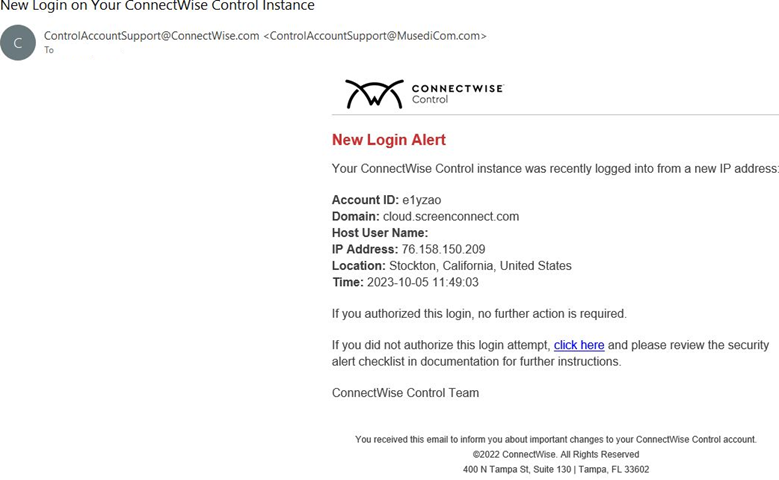
Please note, ScreenConnect does send legitimate new login alerts via email as shown in this screenshot. ConnectWise alerts do not have a “click here” link for any login notifications. If you see a link in your notification, it is not legitimate.
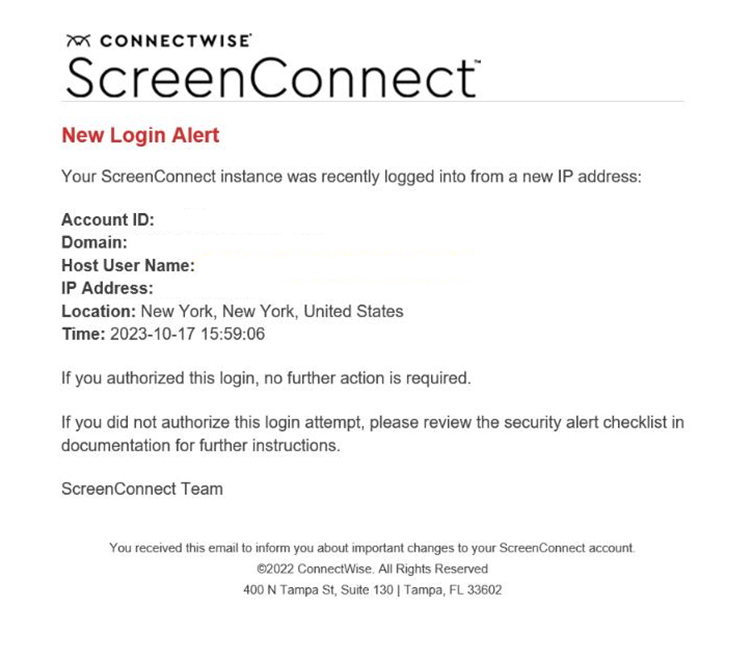
Our Response
With the evolving sophistication of phishing attempts on the rise, a combination of awareness and vigilance is needed. We encourage you to refresh your users with some of the standard phishing attack indicators. We also recommend staying vigilant in looking for clues to avoid mistakenly clicking on nefarious content. Before clicking, make sure content reflects:
- Email domains owned by trusted sources
- Links go to places you recognize
What Should You Do?
If you are concerned that you may have been compromised, please follow the steps in this security alert checklist. We also recommend reviewing the ScreenConnect security guide and best practices for further securing your instance, as well as verifying that links, your account ID, and your domain are accurate.
If you have questions, suspect you received a phishing attempt, or need to report a security or privacy incident, please visit our ConnectWise Trust Center. You can report both a non-active security incident, report a security vulnerability, or create a case with ConnectWise Service and Support.
October 4, 2023 WebP/libwebp Zero-Day Vulnerabilities
*This advisory has been updated to include the impact to ConnectWise PSA.
Security researchers disclosed two vulnerabilities related to maliciously formed WebP images, which could be used to exploit browsers and the libwebp library. The libwebp library is widely used by operating systems and applications to render .WebP images.
What We Know
The vulnerability, initially tracked as CVE-2023-4863, was disclosed by Google as affecting its Chrome browser. Further investigation revealed the issue originated in the open-source libwebp library, prompting updates from multiple vendors.
A related vulnerability, CVE-2023-5129, was initially registered with a critical CVSS score of 10 but has since been withdrawn as a duplicate of CVE-2023-4863. The latter now includes the broader impact on the libwebp library.
Our Response
Our cross-functional teams immediately began comprehensive assessments of all applications and systems to identify potential risks. We also implemented enhanced monitoring to detect any suspicious activity related to this vulnerability.
Remediation
All identified products have either completed remediation or are actively undergoing it. For third-party products, we are monitoring vendor updates to apply fixes as they become available.
Remediation to date:
- ConnectWise ScreenConnect™ v23.7.8 has been released, disabling the use of libwebp
- ITBoost™, a ConnectWise solution, has been remediated and released into production
- SLI 3.0 and SLI Insights have been remediated and released into production
- Remediation efforts for ConnectWise PSA™ are ongoing. In the meantime, we recommend using the web client instead of the thick client to reduce exposure risk
- Reports and Dashboards (formerly BrightGauge™), SmileBack™, ConnectWise CPQ™, ConnectWise Automate™, The ConnectWise Platform™, and security services are not directly impacted
While we continue addressing this issue across our product suite, we recommend partners ensure their applications are up to date, regularly check for updates, and install them promptly.
If you have additional questions, please contact security@connectwise.com. To report a security or privacy incident, visit the ConnectWise Trust Center or create a case with ConnectWise Service and Support.
April 14, 2023 <4:00pm ET> Microsoft Message Queuing Vulnerability
We have been made aware of a vulnerability affecting Windows Operating Systems running the Microsoft Message Queuing (MSMQ) service, impacting on-premise ConnectWise PSA partners. PSA cloud partners remain unaffected.
This vulnerability allows adversaries to exploit TCP port 1801 within ConnectWise PSA and execute remote code without authorization. While no immediate threat has been detected, we strongly recommend you take the following actions immediately to mitigate this vulnerability:
- Follow the steps outlined in Microsoft’s mitigations
- Update with the latest Microsoft patches
- If you are unable to update with the latest Microsoft patches, as a temporary mitigation:
- Disable the external connection for port 1801
If you have additional questions, please contact security@connectwise.com.
December 20, 2022 <6:52 PM ET>: Best Practice Reminder – Download from Trusted Sources
Researchers from ReversingLabs have identified malicious Python packages on the Python Package Index (PyPI) posing as a software development kit (SDK) from SentinelOne. The package mimics the legitimate SDK offered by SentinelOne but includes backdoor and data exfiltration features.
The full article, including the write-up and IOCs (data exfiltration IPs and package SHA1 hashes), can be found at this link. The ConnectWise Security Operations Team received the following statement from SentinelOne:
"SentinelOne is aware of the report from ReversingLabs regarding malicious packages uploaded to the PyPI (Python Package Index) repository misrepresenting themselves as SentinelOne SDK.
A malicious Python package was first uploaded to PyPI on Dec 11, 2022, and as of Dec 13, 2022, the package had been updated 20 times. The report advises that the package contains a malicious backdoor with a programmatic delay before activation. We have confirmed that our customers are safe and have not seen any evidence of compromised clients due to this incident.
Packages posing as legitimate software and leveraging the PyPI repository are becoming more common and are part of a trend toward integrating threats into software supply chains and development pipelines.
We recommend only using SDK packages provided through the SentinelOne management console.
PyPI has removed the malicious package, and we are working to investigate further."
As an industry best practice, ConnectWise recommends partners download content (SDKs, executables, installation packages, etc.) directly from the vendor to minimize risk and always verify script content prior to execution.
December 13, 2022 <11:21 PM ET>: SentinelOne/Aikido Vulnerability – Action Required
Vulnerability Type: Time-of-check Time-of-use (TOCTOU) Race Condition
Vulnerability Details
SafeBreach Labs researcher Or Yair uncovered vulnerabilities in several leading EDR and AV solutions, including SentinelOne. The issue allows a non-privileged user to create NTFS reparse points, which redirect file paths. The SentinelOne agent uses Windows functionality to retrieve file paths for mitigation. A malicious actor could exploit this to redirect the agent to a privileged file, potentially turning the agent into a data wiper.
Products Impacted
Microsoft Windows systems running SentinelOne agents prior to version 22.2.4.558 are vulnerable.
SentinelOne agents are used in the following ConnectWise products:
- ConnectWise SentinelOne Control
- ConnectWise SentinelOne Complete
- ConnectWise MDR with SentinelOne
- ConnectWise MDR Premium with SentinelOne
This exploit was also tested and found to affect Defender, Defender for Endpoint, TrendMicro Apex One, Avast Antivirus, and AVG Antivirus.
Mitigation
To be protected, install the latest SentinelOne policy override in version 22.2 SP1 (22.2.4.558) on your Windows agent endpoints. ConnectWise SOC teams have already updated all ConnectWise SentinelOne EDR and MDR consoles with this version.
After deployment, verify in the SentinelOne console if your machine requires a reboot to complete the installation.
If you have any questions about the update process, please contact our security support team at securitypartnersupport@connectwise.com.
November 29, 2022 <4:00 PM ET>: Remaining Vigilant Against Email Phishing Attempts
We are aware of a phishing campaign that mimics ConnectWise Control New Login Alert emails and has the potential to lead to unauthorized access to legitimate Control instances. Email phishing attacks continue to grow in sophistication, often mirroring legitimate email and web content.
A sample of this phishing email is shown in the screenshot below and contains a “click here” link to a malicious site. ConnectWise has issued takedown requests for the malicious site and associated domains.
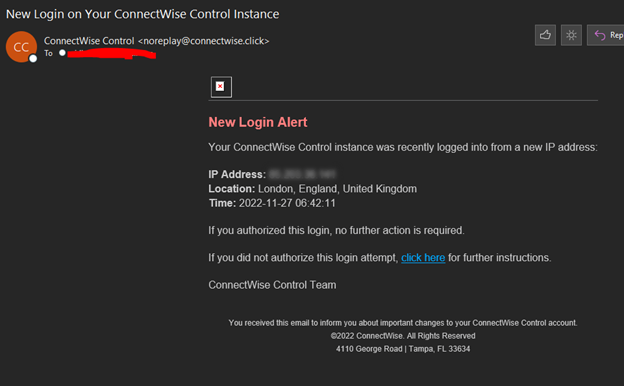
If you are concerned that you may have been compromised, please follow the steps in this security alert checklist. We also recommend reviewing the Control security guide and best practices for further securing your instance, as well as verifying that links, your account ID, and your domain are accurate.
Of note, Control does send legitimate New Login Alerts via email as shown in this screenshot. The legitimate “click here” link references the aforementioned security alert checklist that exists as a knowledge base article on our site.
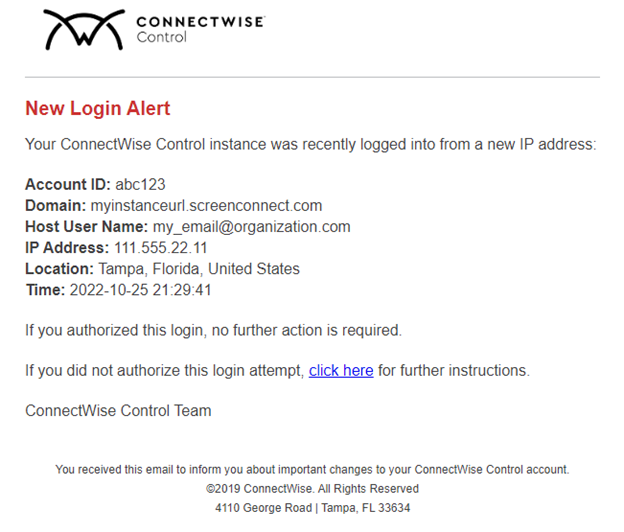
This is a more sophisticated attempt — some of the standard phishing attack indicators aren’t present, such as misplaced graphics or spelling inconsistencies. We encourage our partners to stay vigilant in looking for clues to avoid mistakenly clicking on nefarious content. Before clicking, make sure content reflects:
- Email domains owned by trusted sources
- Links that go to places you recognize
If you have questions, suspect you received a phishing attempt, or need to report a security or privacy incident, please visit our ConnectWise Trust Center. You can report both a non-active security incident, report a security vulnerability, or create a case with ConnectWise Service and Support.
May 5, 2022 <11:00 AM ET>: Email Security Best Practices
We want to provide reminders to our partners about email security best practices.
Phishing remains a significant attack vector in many high-profile security incidents. It is imperative that organizations implement email security controls to prevent impersonation and spoofing of users and domains. SPF, DKIM, and DMARC work together to authenticate email and help ensure that the sender is who they claim to be.
SPF, DKIM, and DMARC Defined
- SPF (Sender Policy Framework) is an email validation protocol designed to detect and block email spoofing. It allows mail exchangers to verify that incoming mail from a domain comes from an IP address authorized by that domain’s administrators.
- DKIM (DomainKeys Identified Mail) uses cryptographic signatures to allow mail service providers to verify the authenticity of the sender.
- DMARC (Domain-based Message Authentication, Reporting & Conformance) aligns SPF and DKIM and allows organizations to apply policies regarding unauthorized use of email domains.
For more information on how to set up and configure SPF, DKIM, and DMARC, refer to the following resources:
- SPF: https://www.proofpoint.com/us/threat-reference/spf
- DKIM: https://www.proofpoint.com/us/threat-reference/dkim
- DMARC: https://www.proofpoint.com/us/threat-reference/dmarc
Security is a top priority at ConnectWise. Our goal is to provide robust, secure products and services to our partners. We also recognize that no technology is perfect, and we believe working with skilled security researchers and partners is crucial to identifying and resolving vulnerabilities.
If you believe you've found a security issue in our product or service, we encourage you to notify us through our Vulnerability Disclosure Program. We welcome the opportunity to work with you to resolve the issue promptly.
We are proud to be part of a community that remains equally committed to secure practices.
January 31, 2022 <8:00 PM ET>: ConnectWise Virtual Community Update
We apologize to our partners for the disruption in service last week pertaining to our virtual community. It is now online, and our product and other teams look forward to engaging with you.
Like many ConnectWise experiences (e.g., our University), our virtual community platform uses SSO to authenticate users and ensure only authorized partners engage in the community. Our SSO mechanism functioned as intended—only allowing verified ConnectWise partners to register, accept the terms and conditions, and use the platform. There was no malicious attack on our SSO capabilities.
Last week, a valued partner (via our VDP and MSPGeek community admins) raised concern about information our virtual community search was displaying to registered members. While directory search was working as intended in most cases, a configuration issue allowed non-registered partners to appear in search results. This included "first name", "last name", "company name", and in some cases, "business title". Although this information is publicly accessible (e.g., via LinkedIn), it raised understandable concern.
Only 15 registered partners conducted searches since the community launch. While we couldn’t validate the exact search results due to vendor API limitations, we confirmed that only 18 non-registered partner profiles were viewed. We remediated the issue within hours and took the site offline for a full review per our InfoSec policy. No malicious activity was discovered, no data was lost, and no data privacy actions were triggered in any jurisdiction.
What We Did
- Reconfigured the platform to consume only basic information about registered users who accept the terms of service.
- Limited default directory search fields to first and last name.
- Enabled the member directory for registered users, but default privacy settings now show only first name, last name, and profile photo (if uploaded) to non-approved contacts.
- Allowed registered members to adjust their privacy settings to control what information is shared with others.
As a courtesy, we are notifying the 18 individuals whose profiles were viewed and reaching out to the 15 partners who conducted searches to ensure the information is not used beyond community networking.
We learned that our 30-day beta testing (internal and with partners) did not expose this configuration issue. As a result, we’ve implemented additional multi-layered testing and quality control mechanisms.
Transparency benefits our community. We thank the partner who reported this and those who collaborated with us. If you have questions, please contact security@connectwise.com.